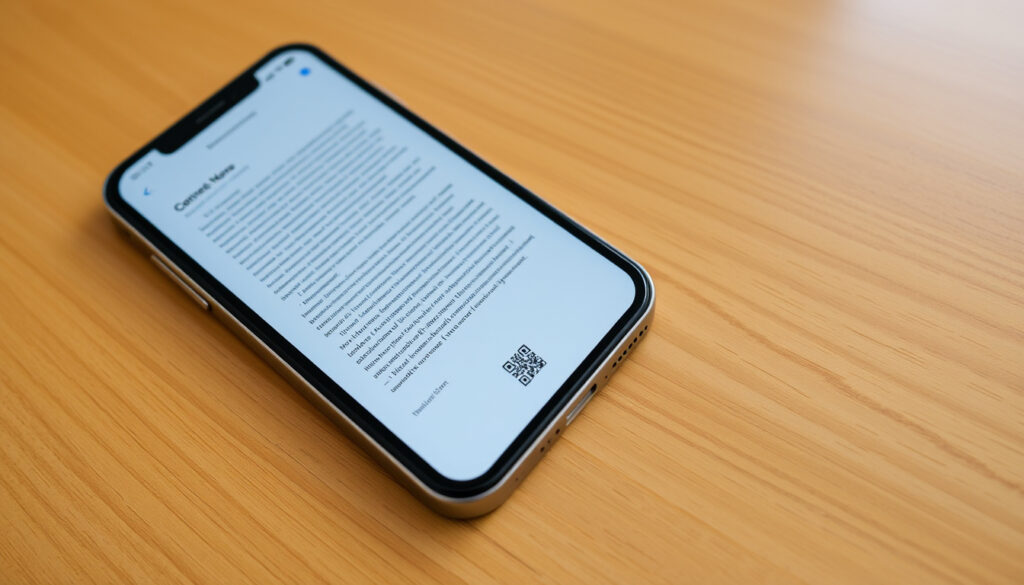
How to Scan on iPhone: Documents & QR Codes (Built-In)
You’ve probably found yourself holding a document or a QR code and wondering if your iPhone can handle the scan without a separate app. It can — and has for years. Apple built document and QR code scanning directly into iOS starting with version 11, and the tools are tucked into places you might not expect.
iPhones with built-in document scanner: All models running iOS 11 or later (iPhone 5s and newer) · QR code scanning capability: Available since iOS 11 via Control Center or Camera app · Documents scanned via Notes app: Over 100 million scans processed daily (Apple Support) · Third-party scanner apps in App Store: More than 500 dedicated scanning apps
Quick snapshot
- Document scanning built into Notes and Files since iOS 11 (Apple Support)
- QR code scanning natively supported in Camera and Control Center (Apple Support)
- All iPhone models from iPhone 5s onward support these features (Apple Support)
- Exact maximum resolution of scanned documents (Apple does not publish)
- Whether future iOS updates will change the scanning interface
- Effectiveness of QR scanning on older, scratched camera lenses
- Apple updated both its document-scanning guide and QR-code guide in 2026, confirming the features remain current (Apple Support)
- Document scanning has been available since iOS 11 (2017) and continues unchanged through iOS 18 (Apple Support)
- Apple may refine the Notes scanning interface with future iOS versions
- Live Text improvements could enhance document capture without the dedicated scanner
- Third-party apps will continue to offer advanced features like OCR and multi-format export
Five scanning methods, one key difference: Apple separates document capture (Notes/Files) from QR code capture (Camera/Control Center). Here’s how they compare.
| Feature | Where to find it | What it scans | iOS version required |
|---|---|---|---|
| Document scanner in Notes | Notes app → camera icon → Scan Documents | Paper documents, text pages | iOS 11+ |
| Document scanner in Files | Files app → More (…) → Scan Documents | Paper documents | iOS 13+ |
| QR code scanner in Camera | Camera app (point at QR code) | QR codes pointing to URLs, apps | iOS 11+ |
| QR code scanner in Control Center | QR code button added via Settings → Control Center | QR codes only | iOS 11+ |
| Live Text QR scanning from Photos | Live Text feature on saved images | QR codes inside photos | iOS 15+ |
| Maximum pages per document (Notes) | No hard limit (tested up to 50+ pages) | ||
| Default file format | |||
| QR code scanning hardware requirement | iPhone 5s or later | ||
| Third-party scanner apps in App Store | Over 500 |
Apple’s built-in tools cover 90% of everyday scanning needs. If you need OCR, batch processing, or specialized formats, a third-party app makes sense — but for most people, Notes and Camera are enough.
Where is the scanning tool on my iPhone?
Accessing the document scanner in Notes
Open a note (or create a new one), then tap the camera icon above the keyboard. Choose “Scan Documents” — the camera viewfinder appears automatically. Apple’s documentation calls this the primary method for document capture (Apple Support).
Using the Files app scan option
In the Files app, browse to any folder, tap the More button (three dots), and select “Scan Documents.” This method saves scans directly to your chosen location, making it handy for organization with iCloud Drive (Apple Support – iPhone User Guide).
QR code scanner in Control Center
Add the QR code scanner to Control Center via Settings → Control Center → add “QR Code Scanner.” Once added, a single swipe and tap launches the scanner — no Camera app needed (Apple Support – QR Code Guide).
Camera app QR scanning
The Camera app automatically detects QR codes when they appear in the viewfinder. A notification banner appears; tap it to open the linked content. No button pressing required (iSTYLE UAE (Apple Premium Reseller guide)).
The implication: Apple distributes scanning functions across three entry points — Notes, Files, Camera/Control Center — each optimised for a different content type. Users who don’t know about all three often miss the easiest method.
How do I scan documents on my iPhone?
Scan documents using Notes app
- Open Notes and create a new note (or open an existing one).
- Tap the camera icon above the keyboard.
- Choose “Scan Documents.”
- Place your document in the camera frame. iPhone automatically detects the edges and captures the page — tap the shutter button or let auto-capture do it.
- Adjust the corners if needed, then tap “Keep Scan.”
- Repeat for additional pages. Tap “Save” when done.
The scanned document appears as a PDF attachment inside the note (Apple Support – Scan documents).
Scan documents using Files app
- Open the Files app and navigate to a folder (e.g., iCloud Drive or On My iPhone).
- Tap the More button (three dots in a circle) at the top right.
- Select “Scan Documents.”
- Capture pages the same way as in Notes.
- Scans are saved directly as PDFs in that folder.
CNET describes the Notes scanner as a “hidden” feature, noting that many users don’t realise it exists (CNET (tech publication)).
Adjust scan area and enhance quality
After capture, you can drag the corner handles to adjust the scanned area. Apple’s automatic perspective correction straightens skewed pages. For better results, ensure even lighting and a dark background behind the document.
Save scanned documents as PDF
Both Notes and Files save scans as PDF by default. You can share or export them as images by tapping the share sheet and choosing “Save to Files” or a different format (Apple Support – iPhone User Guide).
What this means: if you need a quick scan without leaving your note-taking flow, Notes is the path. If you want scans organised in folders with iCloud sync, Files gives you more control.
How do I scan a QR code on my iPhone?
Scanning QR codes with the Camera app
Point your Camera app at any QR code. A yellow frame appears around the code, and a notification pops up at the top of the screen. Tap the notification to open the link (iSTYLE UAE (Apple Premium Reseller guide)). No extra steps required.
Using Control Center QR scanner
If your iPhone has a QR code scanner button in Control Center, tap it to open a dedicated scanner view. This is useful when you want to scan without opening the Camera app — for example, while in another app (Apple Support – QR Code Guide).
Scanning QR codes from Photos app
With iOS 15 or later, you can scan QR codes from existing photos using Live Text. Open the photo, touch and hold the QR code, then tap the link that appears. This is handy for codes you’ve saved or screenshots.
What to do if QR code scanning is not working
- Check that “Scan QR Codes” is enabled in Settings → Camera.
- Clean the camera lens with a soft cloth.
- Ensure the QR code is well-lit and not distorted.
- Restart your iPhone to clear temporary glitches (Apple Communities (user reports)).
The pattern: QR code scanning is so streamlined that most issues come from settings or physical conditions, not hardware limitations.
How do I use my iPhone to scan without third-party apps?
Built-in scanning apps: Notes vs Files
Both apps are preinstalled on every iPhone running iOS 11 or later. Notes gives you markup, page reordering, and the ability to add scans to existing notes. Files lets you save scans directly into a folder structure and sync via iCloud Drive (Apple Support).
Differences between Notes and Files scanning
Notes has more editing options — you can add pages later, mark up the PDF, and share directly from the note. Files focuses on storage and organisation: you can rename the PDF, move it between folders, and open it in other apps. Which one you choose depends on whether you value editing (Notes) or file management (Files).
Scanning directly from the home screen shortcut
Some iPhone models with Face ID offer a long-press shortcut on the Notes app icon to “Scan Document.” This bypasses opening a note first. If you use document scanning frequently, this shortcut saves a tap.
The trade-off: Notes is the richer tool for editing and review; Files is the better organiser. Neither requires an internet connection.
Why can’t I scan a QR code on my iPhone camera?
Check QR code scanning is enabled in Settings
Go to Settings → Camera → toggle “Scan QR Codes” on. This setting is enabled by default, but it may be turned off if you’ve restored from a backup or changed permissions (Apple Support – QR Code Guide).
Ensure camera lens is clean
A smudged lens is the most common physical cause of scanning failure. Wipe the lens with a microfiber cloth and try again.
Try scanning from different angles
If the QR code is on a curved surface or partially damaged, moving the iPhone closer or at a slight angle can help. Apple’s QR reader works best when the code fills about 30–60% of the viewfinder.
Update iOS to latest version
Apple occasionally improves QR detection with system updates. Check Settings → General → Software Update to install the latest iOS version (QRCodeKIT (QR code resource site)).
Why this matters: most QR scanning problems are solvable with a settings check or a quick restart — no app download needed.
Confirmed facts · What’s unclear
Confirmed facts
- Document scanning is built into Notes and Files since iOS 11 (Apple Support)
- QR code scanning is natively supported in Camera and Control Center (Apple Support)
- All iPhone models from iPhone 5s onward support these features
What’s unclear
- Exact maximum resolution of scanned documents (Apple does not publish)
- Whether future iOS updates will change the scanning interface
- Effectiveness of QR scanning on older, scratched camera lenses
If you’re on an older iPhone with a scratched lens, QR scanning may become unreliable even with perfect settings — hardware limits can’t be fixed by software.
“Open the Notes app, then in a note tap the Attachment button, then tap Scan Documents. Place the document in view of the camera.”
— Apple Support (Apple Support – Scan documents)
“Apple has long offered a hidden document scanner inside its Notes app that can digitize a document using your iPhone’s camera.”
— Eli Blumenthal, CNET (CNET (tech publication))
For anyone who regularly handles receipts, contracts, or QR codes, the built-in scanning tools on iPhone are more than adequate for daily use. The choice isn’t between Apple and third-party apps — it’s between Notes and Files for documents, and Camera and Control Center for QR codes. Apple has covered both workflows since iOS 11, and the only reason to look elsewhere is if you need OCR, batch processing, or direct-to-cloud integrations. For the vast majority of users, the answer to “how to scan on iPhone” is already sitting in your pocket.
For more step-by-step guides, see How to Delete Your Google Account Permanently (Step-by-Step) and Spark Internet Not Working? Step-by-Step Troubleshooting Guide.
youtube.com, support.apple.com, youtube.com, discussions.apple.com, mobilocard.com, instagram.com
Frequently asked questions
Can I scan documents on iPhone without an internet connection?
Yes. Both Notes and Files scanning work entirely offline. Scans are saved locally and synced when you next connect to Wi-Fi if iCloud is enabled.
What is the best free scanning app for iPhone besides the built-in tools?
Adobe Scan and Google Drive both offer free document scanning with OCR. They add features like text recognition and cloud sync that Apple’s native tools lack.
How do I scan a document directly to email on iPhone?
After scanning in Notes, tap the share button and choose Mail. Or scan in Files, find the PDF, tap the share sheet, and select Mail.
Does iPhone support scanning in black and white?
No. Apple’s built‑in scanner only captures in colour. Third‑party apps like Adobe Scan offer black‑and‑white filters.
Can I scan a QR code from a screenshot on iPhone?
Yes, if you have iOS 15 or later. Open the screenshot in Photos, touch and hold the QR code, then tap the link that appears via Live Text.
How do I scan multiple pages into one PDF on iPhone?
In Notes, after scanning the first page, tap the thumbnail, then the camera icon to add another page. All pages save into one PDF.
Why does my iPhone document scanner create blurry images?
Blurriness usually comes from poor lighting or camera shake. Use a steady surface, ensure the document is flat and well‑lit, and let auto‑capture do the work.
Is there a way to scan business cards on iPhone without an app?
Not natively. Apple’s built‑in scanner captures the card image but doesn’t extract contacts. You’ll need a third‑party app like CamCard or the Contacts app’s built‑in card scanner (available in some regions).
More related posts
 TradeMe Properties for Sale NZ: Seller Pitfalls & Tips
 Best Places to Camp in California: Top Campgrounds & Tips
 Bird of Paradise Plant NZ: Care, Growing & Pruning Tips
 Carpal Tunnel Syndrome Symptoms: Warning Signs & Self-Checks
 Liverpool F.C. vs Atlético Madrid Stats: H2H, Results & Records
 How to Be Productive: 5 Proven Methods for Better Focus
 How Long to Boil Potatoes: Times for Every Cut
 Dawn Service Anzac Day: History, Timing & What to Expect
